How to Enable Circle to Copilot in Microsoft Edge

In 2026, Microsoft Edge Microsoft Edge remains the primary browser for Windows 11. While you can switch to their preferred or favorite browser at any time, Edge now offers advanced AI tools built directly into the interface. It is important to note that “Circle to Copilot” has been fully integrated into the standard Copilot sidebar experience. While browser-specific tools focus on web content, they now work alongside system-wide AI features in Windows 11 that handle tasks across your entire desktop.
Why use Copilot features?
These tools allow you to quickly analyze text or images on your screen without switching apps. By using simple mouse gestures, you can ask the AI to explain, summarize, or rewrite content instantly.
What happens when you enable these features?
Once active, you can trigger AI assistance directly on your webpage. This saves time and makes your browser a powerful research assistant.
Turn Copilot sidebar and AI features on or off in Microsoft Edge
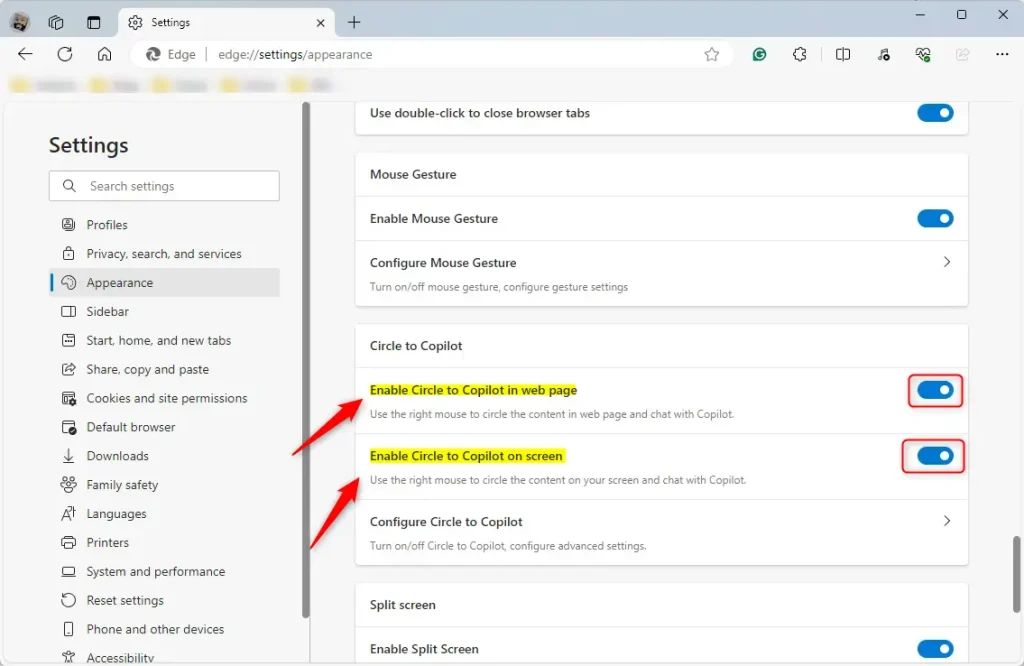
The “Circle to Copilot” feature has been replaced by the more robust Copilot sidebar integration. You can manage these AI tools through the Sidebar settings.
First, open the Microsoft Edge browser.
Click the Settings and more (three horizontal dots) button in the top right corner and select Settings.

On the left panel, click Sidebar.
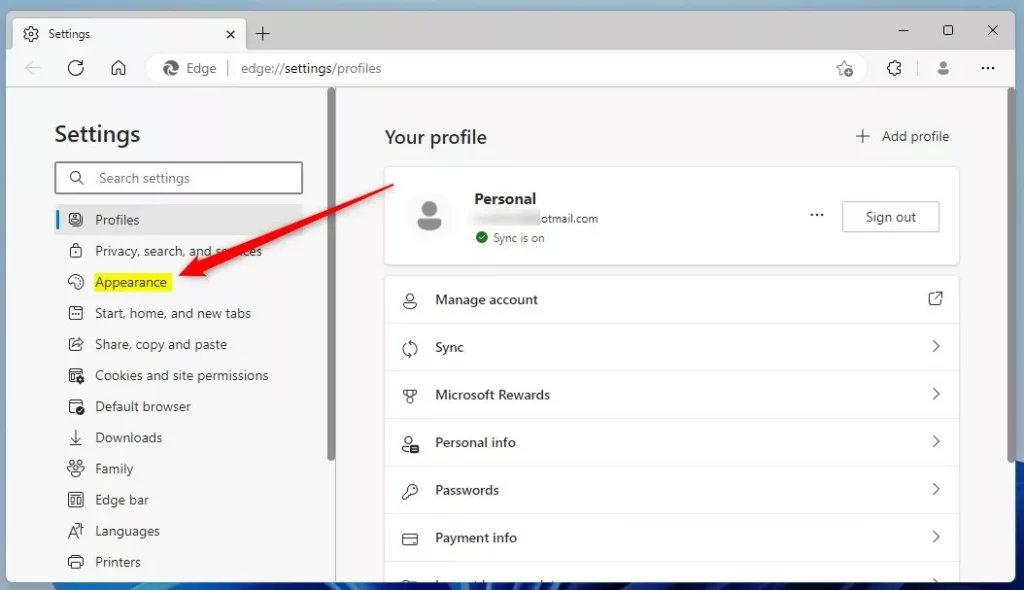
Under the App and notification settings section, click on Copilot. Here, you can toggle the switch to show or hide the Copilot icon in your browser toolbar.
Close the Settings page when you are done.
Hardware Requirements and Compatibility
As of 2026, many AI features in Microsoft Edge rely on local processing to remain fast and responsive. For the best experience, your computer should feature a modern processor with a dedicated Neural Processing Unit (NPU). While these features will run on standard hardware, devices with an NPU will handle complex AI tasks with much lower power usage and higher speeds. Ensure your Windows 11 system is fully updated to support these hardware-accelerated AI functions.
That should do it!
Was this guide helpful?



Leave a Reply Cancel reply